Navigation: User Interface >
Diagrams


|
Navigation: User Interface > Diagrams |
|
A Diagram displays a view of Tables, Views, Materialized Views, various kinds of Relations and simple graphic objects - like rectangles, circles, lines.. Which Tables and Views are displayed is determined by the Model Subset that owns the Diagram. A Model Subset is used to specify a subset of all of a Model's Tables and Views - allowing you to organize the display of your Tables/Views in whatever way you want.
ModelRight provides an amazing variety of ways to display your Model. The following two Diagrams illustrate this variety. Both Diagram are contained in the same Model Subset (so they have the same Tables/Views) and use the same Notation (Barker), but they have very different display options: Themes allow you to change the look of a Diagram with a single click.
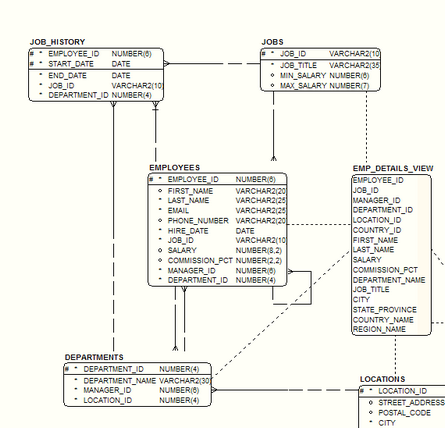
A Diagram with its Diagram Display and Table Graphic options set to plain black and white options.
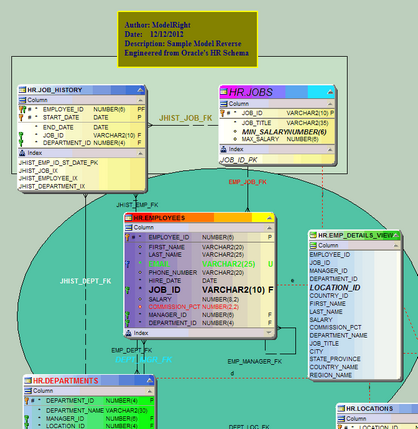
The same set of Tables/Views and notation (Barker) displayed with more colorful display options.
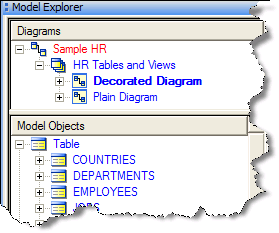
The Diagrams and Model Subsets are displayed at the top of the Model Explorer. To open a Diagram either double-click on it or right click and select Open in the context menu.
The most fundamental part of any database design is the Diagram. ModelRight 3.6 provides unprecedented levels of control and flexibility when it comes to your Diagram's display. With a wealth of new and useful display options, you can display and edit any kind of object and any property on the Diagram. You simply select the properties, the types of objects that you want to included in your diagram - and order them any way you want.
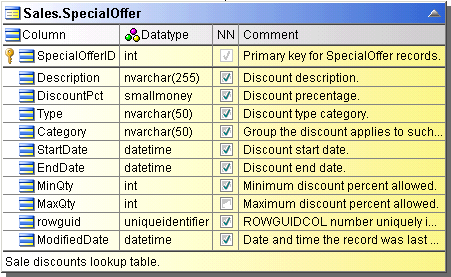
An example of the default Table display
Example 1
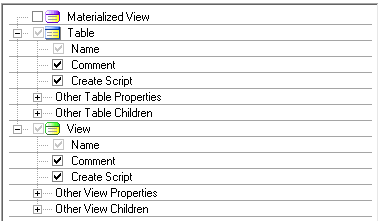
Example of display option settings to show only the Table Comment and Create Script
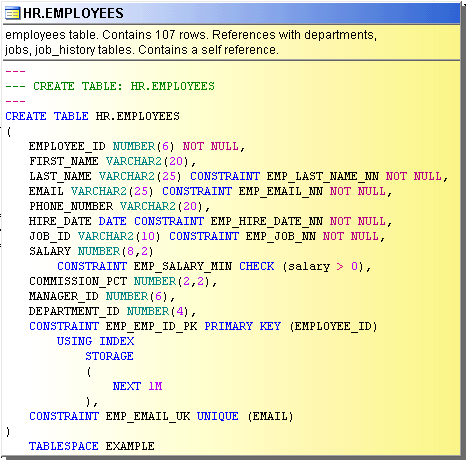
And the resulting Table display
Example 2
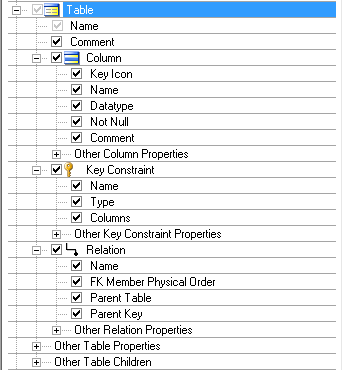
Table with Columns (using checkboxes for Not Null), Key Contraints and properties (no header), and Relations and properties
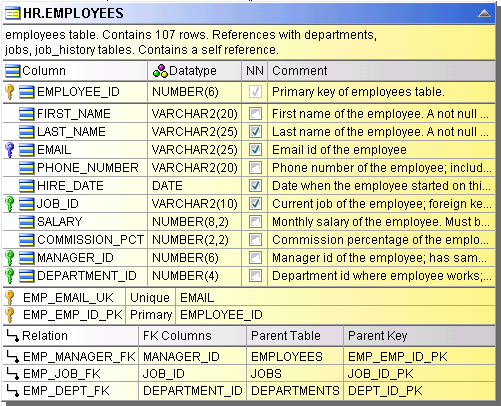
...and the resulting display
Controlling Content Display
ModelRight 3.6 uses "Content Display" objects to store and let you easily switch between your different sets of display options. A Diagram can have any number of Content Displays to let you quickly change the displayed information of the Diagram's objects (i.e. tables, views, etc).
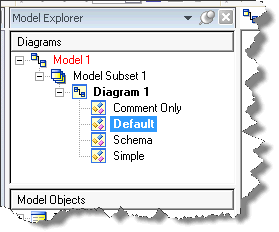
The Diagrams section of the Model Explore lists the Content Display options that you currently have defined. Select it to edit or double click to select and activate.
A Diagram has one active Content Display at a time. You can activate a Content Display by double clicking on it in the Explorer or by changing it from the Diagram's property page. As with anything else, when you select a Content Display in the Model Explorer, its properties are displayed in the Property Browser:
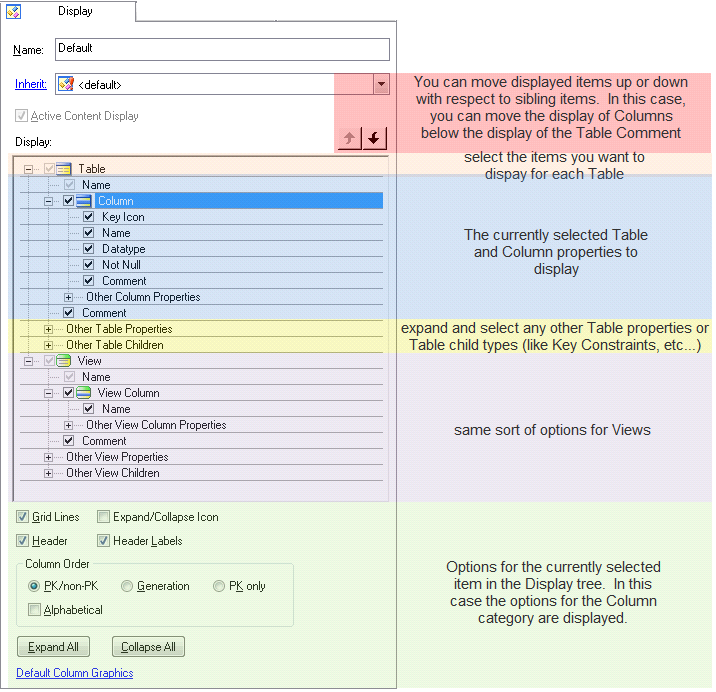
The Content Display edit controls in the Property Browser.
Click around on the tree items to see the options that are available for the selected item.
Page url: https://www.modelright.com